15 Minutes to Tracking Domain Setup for Teams: Avoid CAA, Proxy, TTL
Get exact CNAME and TTL values, fix proxied records and CAA blocks, and decide when to use a managed tracking domain setup.

15 Minutes to Tracking Domain Setup for Teams: Avoid CAA, Proxy, TTL
A tracking domain is a branded subdomain that routes your email link clicks and opens through your own hostname rather than a generic provider link. The first step is always the same: create an isolated subdomain, like trk.yourcompany.com, and add a CNAME record pointing to the value your email or tracking platform gives you. Once that record propagates and verifies, your links serve over HTTPS under your own brand, which builds more trust with both recipients and inbox filters.
TL;DR:
- Proper DNS setup requires choosing an unused subdomain and pointing its CNAME record to your provider’s hostname without proxying it through a CDN to ensure reliable verification.
- DNS propagation can take up to 48 hours, but lowering TTL during setup accelerates updates; always verify the exact CNAME value and avoid proxies like Cloudflare’s orange cloud during verification.
- Automatic SSL issuance depends on correct DNS configuration and may be blocked by CAA records or proxies; confirmation of verification status is essential before activating tracking links.
- Regularly monitor your tracking domain’s verification status and document your DNS settings to prevent silent failures that can harm deliverability and tracking accuracy over time.
- Managed setup services are recommended for teams managing multiple client domains or lacking DNS expertise, as they reduce errors, monitoring, and ongoing maintenance efforts.
RunleadpilotSimplify Your Outbound SetupLeadPilot manages sending domains, inboxes, personalized outreach, follow-ups, and warm reply handoff for lean sales teams.Explore LeadPilot
Table of Contents
- Step-by-Step Tracking Domain Setup: Subdomain, CNAME, and Go-Live
- DNS Record Templates You Can Copy Directly
- What Verification Statuses Actually Mean
- Common Verification Problems and How to Fix Them
- Best Practices for Naming, Segmentation, and Deliverability
- Testing and Monitoring After Activation
- How Tracking Domains Affect Analytics and Privacy Compliance
- How to Configure HTTPS and Manage Certificates for Tracking Domains
- Best Practices for Maintaining Tracking Domains Long-Term
- When a Managed Setup Beats Doing It Yourself
- Get Your Tracking Domain and Sending Setup Handled for You
- When to Just Let Someone Else Handle It
- Sources
Step-by-Step Tracking Domain Setup: Subdomain, CNAME, and Go-Live
Most of the friction in a tracking domain setup happens because people try to reuse an existing subdomain or point the record at the wrong value. Do it in order and you’ll avoid nearly every dead end.
- Pick an unused subdomain. Common choices are
trk,links,click, oremail. Avoid your root domain (yourcompany.com) and avoid a subdomain already doing other work, likewwwormail. - Open your DNS provider’s panel. This might be Cloudflare, GoDaddy, Namecheap, Route 53, or your registrar’s own dashboard.
- Add a new CNAME record. Set the Host or Name field to your chosen subdomain (just
trk, not the full domain in most panels), and set the Value or Target field to the hostname your provider supplies, such astrack.provider.com. - Set a short TTL during setup, then raise it once verification succeeds.
- Save the record and return to your platform’s tracking domain settings to trigger verification.
The exact CNAME field mapping differs by registrar, but the underlying logic is identical everywhere: create a subdomain and point its CNAME value to the hostname the provider issues, and verification typically starts once that record is detected, as OVHcloud’s DNS guide lays out for Exchange and similar setups.
Two setup paths exist depending on your platform:
- Automatic provisioning. If your account already has a warmed or branded sending domain configured, some platforms generate and verify the CNAME with a single click.
- Manual CNAME entry. Otherwise, you’ll copy the record values yourself and publish them in your DNS panel before verification can start, a pattern Klaviyo’s setup documentation describes clearly for both flows.
Don’t flip tracking on in your platform’s settings until the domain shows a verified status. Turning tracking on prematurely can send links through an unverified, unbranded fallback, which defeats the purpose of setting up a custom domain in the first place.
Pro Tip: Set your TTL to a low value before you start, then increase it to a standard, longer duration once verification is confirmed. A low TTL during setup means DNS changes propagate faster if you need to correct a typo.
DNS Record Templates You Can Copy Directly
Here’s what the record looks like once it’s filled in correctly, using a generic example:
- Host/Name:
trk(some panels want the fulltrk.yourcompany.com) - Type: CNAME
- Value/Target:
track.yourprovider.com(your platform issues this exact string) - TTL: 300 during setup, 3600 or “Auto” after verification
Registrars label these fields differently. Cloudflare calls it “Name” and “Target.” GoDaddy uses “Host” and “Points to.” Route 53 calls it “Record name” and “Value.” The concept never changes: left side is your new subdomain, right side is the hostname your provider gave you.
One rule matters more than any other here: never proxy the tracking CNAME. If you’re on Cloudflare, keep the record set to “DNS only” (the gray cloud icon), not “Proxied” (orange cloud). A proxied record hides the actual CNAME target from the platform trying to verify it, which blocks verification and SSL issuance every time, as Klaviyo’s documentation confirms. Keeping tracking on its own dedicated subdomain, separate from anything else routed through a proxy or CDN, is the safest default.
What Verification Statuses Actually Mean
Once you publish the CNAME, most platforms poll your DNS on a backoff schedule: quick checks right after you save the record, then wider intervals of minutes, hours, and eventually days if nothing changes. A manual “Verify” button typically forces an immediate recheck rather than waiting for the next scheduled poll.
SSL provisioning happens after DNS verification, not simultaneously. Many platforms automatically issue an SSL certificate once the CNAME is confirmed, which is what lets tracking links load over HTTPS without a browser security warning, according to Maropost’s provisioning documentation. If your root domain has a CAA record restricting which certificate authorities can issue certs, that record can silently block SSL issuance even after DNS verifies successfully.
Status labels you’ll commonly see:
- Verifying: the platform is polling DNS; no action needed unless it’s been over 24 hours.
- Action required: the record is missing, mistyped, or proxied.
- Failed: verification timed out; recheck your CNAME value character by character.
- Verified / Active: DNS and SSL are both confirmed and links are live.
Common Verification Problems and How to Fix Them
Most stalled setups trace back to one of four issues.
- DNS hasn’t propagated yet. Changes can officially take up to 24 to 48 hours to fully propagate, per NameSilo’s explanation of DNS propagation, though most updates resolve much faster with a low TTL.
- The record is proxied. Disable Cloudflare’s orange-cloud proxy on the tracking CNAME specifically, and leave it in DNS-only mode until verification completes.
- A duplicate or wildcard record conflicts with it. Check for an existing wildcard CNAME or A record on the same subdomain and remove it.
- A CAA record blocks the certificate authority. Confirm your CAA record permits the authority your platform uses, or add an entry that does, following the same guidance Klaviyo gives for SSL issuance blocks.
Pro Tip: Run a quick lookup with a tool like dig or an online DNS checker before contacting support. Nine times out of ten, the “verification failed” message traces back to a typo in the Value field, not a platform bug. For a deeper walkthrough of propagation timing across registrars, WPCTO’s guide to DNS propagation is a solid reference for agencies managing multiple client domains.
Best Practices for Naming, Segmentation, and Deliverability
A tracking domain works best when it’s kept structurally separate from everything else your domain does.
- Use a dedicated subdomain for tracking, never your root domain, so a reputation issue with links doesn’t touch your MX records or main site.
- Keep your sending hostname, return-path domain, and tracking hostname distinct from each other, even though they all live under your brand.
- Warm up any new sending subdomain gradually before high-volume sends. A brand-new domain sending thousands of emails on day one is a common trigger for spam filtering.
- Confirm DKIM, SPF, and DMARC are properly configured on your sending domain. A tracking CNAME improves link trust, but it doesn’t replace email authentication.
- Follow FTC CAN-SPAM guidance on unsubscribe links and accurate sender headers regardless of how polished your tracking setup is.
Getting the naming and separation right once saves you from untangling a mess of shared reputation later.
Testing and Monitoring After Activation
Confirm everything works before you trust it at scale.
- Send a test email to an account you control and hover over (don’t just click) the tracked link to confirm it resolves to your branded subdomain, not the provider’s generic domain.
- Use a public DNS lookup tool to check that the published CNAME value exactly matches what your provider issued. A single trailing dot or character mismatch will break verification.
- Set up a lightweight monitor, like Google Postmaster Tools or a rotating mailbox test, to watch domain reputation after your tracking domain goes live, since a reputation dip often shows up there before it shows up in your open rates.
How Tracking Domains Affect Analytics and Privacy Compliance
Switching to a branded tracking domain changes more than appearance. It also affects how click and open data gets attributed and how that data intersects with privacy rules.
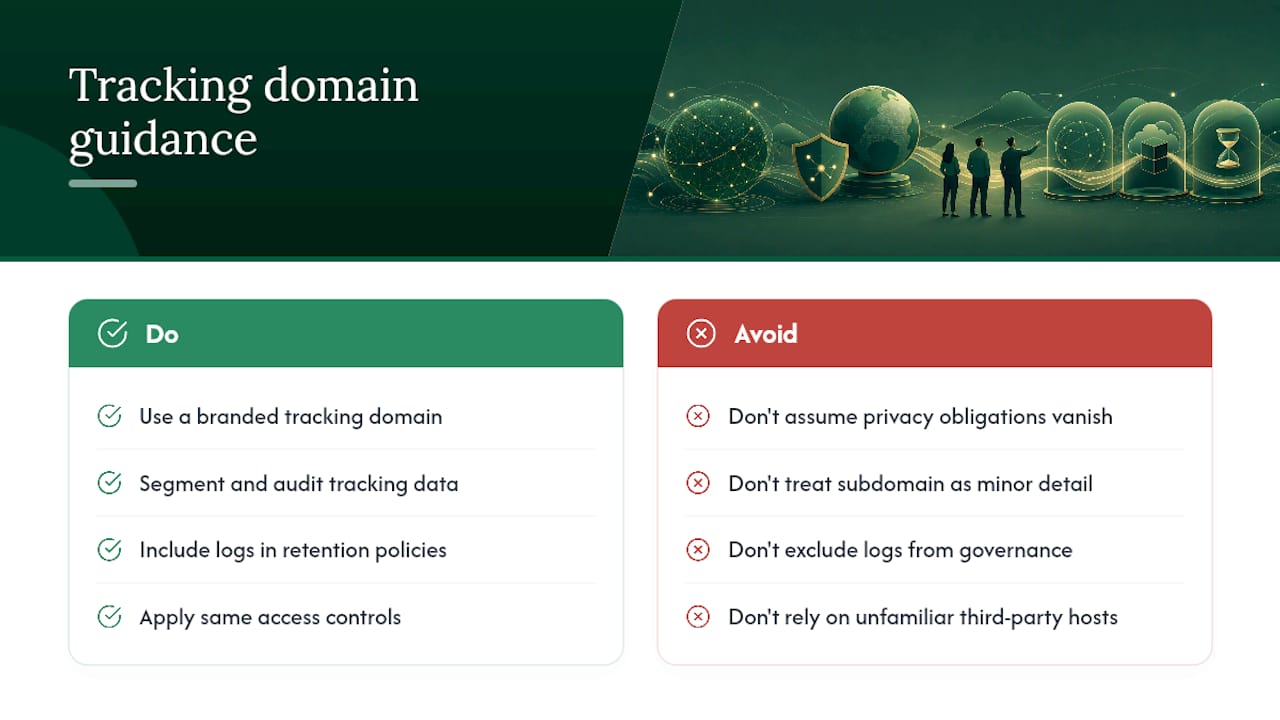
Because the tracking subdomain lives under your own brand, analytics tied to it are typically easier to segment and audit than data flowing through a shared, generic provider domain. That matters when you’re trying to isolate which campaign, sender, or client account generated a specific click, especially for agencies running multiple client sending domains from one platform.
On the privacy side, open and click tracking still involves collecting recipient behavior, regardless of what domain serves the pixel or link. Using your own tracking domain doesn’t change your underlying obligations under regulations like CAN-SPAM or, for recipients in the EU, GDPR. It does make your data flows more transparent to security-conscious recipients, since the request goes to a domain they can recognize instead of an unfamiliar third-party host, which some corporate email filters flag by default.
If your organization handles data subject requests or retention policies, keep tracking domain logs inside the same retention and access-control framework as the rest of your email data. A tracking subdomain is still a full data collection point, and treating it as a minor technical detail rather than a governed data source is a mistake that surfaces during an audit, not before.
How to Configure HTTPS and Manage Certificates for Tracking Domains
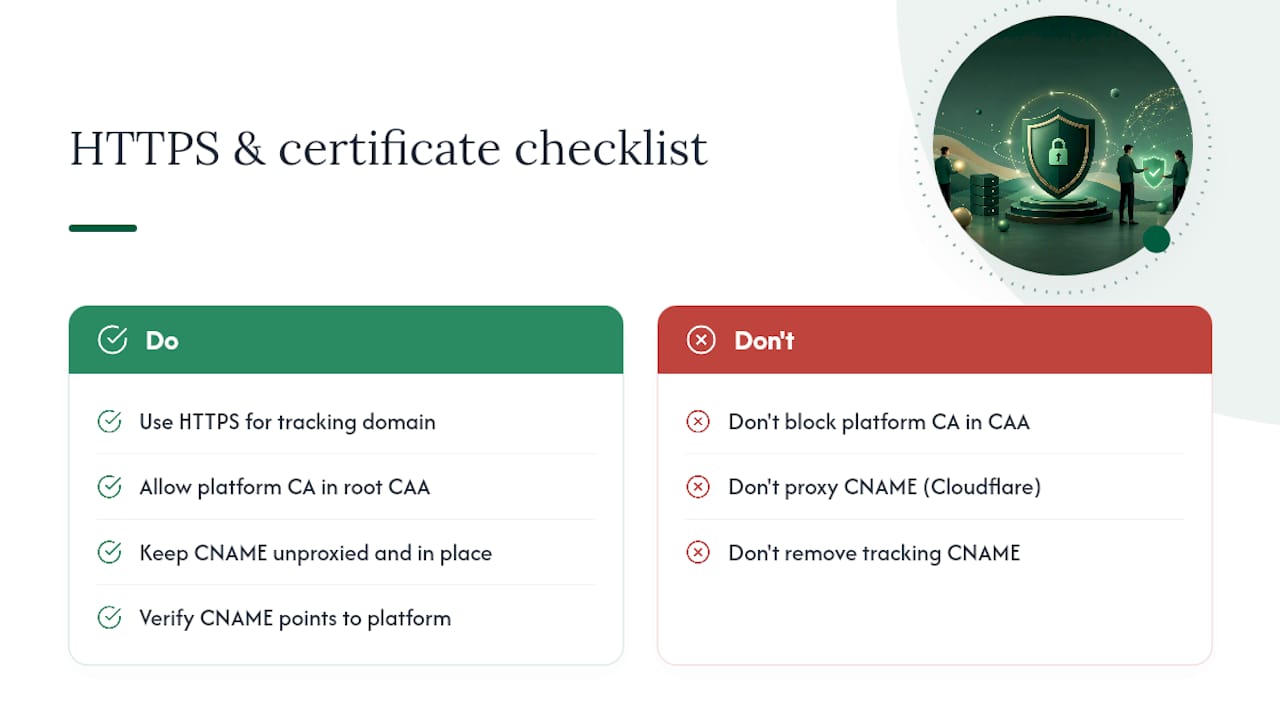
HTTPS on a tracking domain isn’t optional in 2026. Browsers and many corporate mail clients flag or block links served without a valid certificate, which undermines the entire point of a branded tracking domain.
Most platforms handle certificate issuance automatically once your CNAME record verifies, generating and renewing an SSL certificate for the subdomain without any manual steps on your end, a pattern confirmed by Maropost’s documentation on automatic SSL provisioning. That said, automatic issuance depends on your DNS configuration cooperating, and two things commonly break it.
First, a CAA record on your root domain can restrict which certificate authorities are allowed to issue certificates for any of your subdomains, including your tracking one. If your platform’s certificate authority isn’t on that allowed list, issuance fails silently, sitting in a pending state with no clear error message. Second, if the CNAME record is proxied through a service like Cloudflare, the platform can’t see the correct target to validate ownership before issuing the certificate.
Once issued, certificate renewal is typically automatic and invisible as long as the CNAME record stays in place and unproxied. The main failure case is when someone later “cleans up” DNS records and removes what looks like an unused CNAME, breaking both the tracking link and the certificate renewal without anyone noticing until links start throwing security warnings.
Best Practices for Maintaining Tracking Domains Long-Term
A tracking domain isn’t a set-it-and-forget-it configuration. DNS records get “cleaned up” by well-meaning IT staff, certificates lapse when a proxy setting changes, and the reputation on a tracking subdomain can drift the same way sending reputation does.
Check your platform’s domain status dashboard periodically rather than waiting for a bounce report or a broken link complaint to surface the problem. Most platforms surface a clear status flag when verification lapses, so a five-minute monthly check catches issues before they affect a live campaign.
Document the exact CNAME value and TTL settings somewhere your team can find them, ideally outside the DNS panel itself. When someone inherits domain management or a registrar migration happens, that record disappearing without documentation is one of the most common causes of a tracking domain suddenly failing months after it worked fine.
If you’re running outreach across multiple client sending domains, as many agencies do, keep a simple log of which subdomain maps to which client and platform. That single habit prevents the scenario where a tracking domain gets accidentally reused or overwritten during a client offboarding.
When a Managed Setup Beats Doing It Yourself
DNS work is simple in theory and error-prone in practice, especially across multiple client accounts. Teams without direct DNS access, or agencies juggling several client sending domains at once, tend to lose the most time to typo’d CNAME values and missed CAA fixes. Some managed outbound platforms handle sending domains, tracking hostnames, and inbox setup as part of running outreach, removing that layer entirely for teams that would rather not touch a DNS panel.
Get Your Tracking Domain and Sending Setup Handled for You
If you’d rather skip the DNS panel altogether, some platforms offer services to set up and manage sending domains, tracking hostnames, and inbox warmup as part of running outbound campaigns, reducing the need for end users to configure CNAME records, handle CAA errors, or monitor verification status themselves.
That matters most for lean teams without dedicated technical staff and for agencies running outreach across several client sending domains at once, where one misconfigured tracking subdomain can quietly hurt deliverability for weeks before anyone notices. Runleadpilot’s AI SDR platform handles that infrastructure alongside prospect research, personalized email drafting, and follow-up automation, so your team spends time on replies instead of DNS panels. Pair it with a cold email lead generation workflow and inbox management runs on the same managed foundation as your sending domains.
You can build a free campaign preview before committing to anything, which gives a direct look at how some platforms handle targeting and outreach setup before domain configuration is handed off. Start with the free campaign preview to see what a fully managed setup looks like for your account.
When to Just Let Someone Else Handle It
Here’s the part most guides won’t say directly: if you’re spending more than an hour untangling a CAA record or re-explaining CNAME fields to a client’s IT contact, you’ve already lost the time savings a tracking domain was supposed to give you. DNS setup rewards people who do it constantly and punishes everyone else with cryptic status messages and silent SSL failures.
The bigger blind spot isn’t the CNAME record. It’s what happens after verification succeeds. Teams treat “Verified” as the finish line, then never check the domain again until a client asks why open rates cratered. Reputation on a tracking subdomain degrades quietly, the same way sending reputation does, and most platforms won’t proactively warn you before it costs you deliverability.
If you’re managing one domain for one company, do it yourself. It’s a fifteen-minute task once you know the field mapping. If you’re managing tracking and sending across a dozen client accounts, the math changes. The failure mode isn’t technical difficulty. It’s the accumulated hours of monitoring, reconfiguring, and firefighting that never show up on anyone’s calendar until a campaign goes sideways.
— Harsh
Sources
- Maropost: automatic provisioning of SSL certificate for link tracking domains
- Klaviyo: Click-tracking domain setup (automatic and manual flows)
- FTC: CAN-SPAM Act compliance guide for businesses